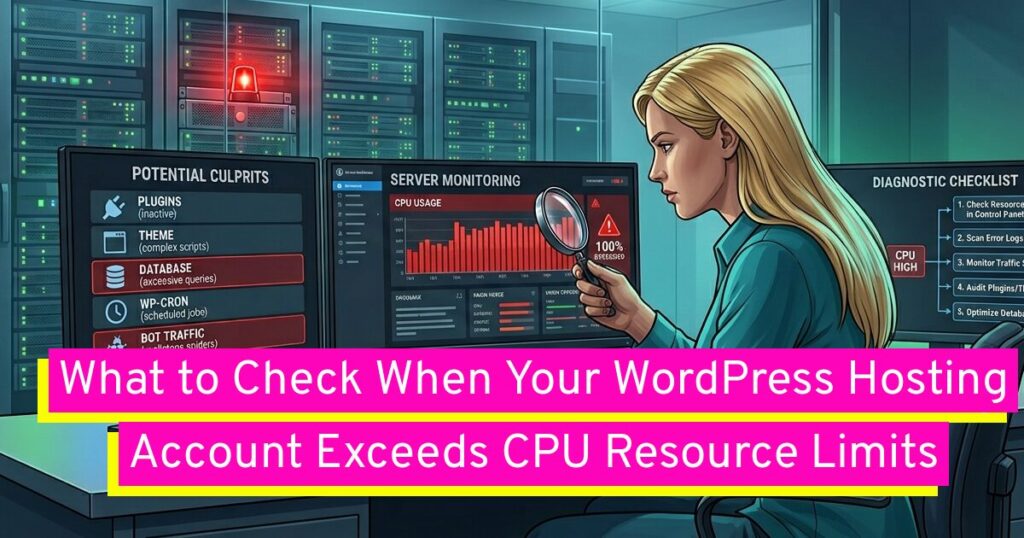
If you run a WordPress website, you’ve likely experienced the frustration of seeing a “CPU Resource Limit Reached” error or noticed your site slowing down to a crawl. This happens when your website demands more processing power from the server than your hosting plan allows. While it can be alarming, it’s a common issue, especially on shared hosting, and is often a sign that your site is growing or that some aspect of it is not optimized.
This article will serve as a comprehensive guide to understanding, diagnosing, and fixing the causes of high CPU usage on a WordPress site. We will cover the most common culprits and provide actionable steps to get your website running smoothly again.
Understanding CPU Limits and Why They’re Exceeded
Every hosting plan, particularly shared hosting, comes with a set of resource limits. These limits include CPU (Central Processing Unit) usage, RAM, and entry processes. Your host puts these limits in place to ensure that a single website doesn’t consume all the server’s resources, which would negatively impact other users on the same server.
When your site consistently hits or exceeds these CPU limits, your hosting provider may throttle your site’s performance(slowing it down) or, in severe cases, temporarily suspend your account until the usage drops. This is why it’s critical to understand the root causes and address them proactively. The most common reasons for high CPU usage in WordPress are:
- Inefficient Plugins and Themes: Some plugins and themes are poorly coded or have features that constantly run in the background, consuming a lot of CPU.
- High Traffic: While a good problem to have, a sudden spike in traffic can overload an under-powered server.
- Excessive Database Queries: As your site grows, its database can become bloated, and inefficient queries can put a heavy strain on the server.
- Inefficient Cron Jobs: These are scheduled tasks that run in the background. If they are poorly configured or run too frequently, they can cause significant CPU spikes.
- Bot and Crawler Activity: Malicious bots and even some search engine crawlers can hammer your site with requests, leading to high CPU usage.
Diagnosing the Problem: Your First Steps
Before you can fix the problem, you need to identify its source. Think of this as being a detective for your website.
- Check Your Hosting Control Panel
- Review Your Error Logs
- Monitor Your Traffic
Check Your Hosting Control Panel
The first and most important step is to check your hosting control panel, such as cPanel or a custom dashboard provided by your host. Look for a section labeled “Resource Usage” or something similar. This tool provides invaluable data, including graphs and reports that show when your CPU usage spikes. It might even show you which processes are consuming the most resources, which can be a huge clue.
Review Your Error Logs
Error logs can reveal a lot about what’s happening under the hood of your website. They might point to a specific plugin or function that’s causing repeated errors or warnings, which could be the source of your CPU issues. You can usually find these logs in your hosting control panel or through an FTP client like Filezilla.
Monitor Your Traffic
Use a tool like Google Analytics to check for any unusual traffic patterns. Did your CPU spike coincide with a massive traffic increase? This could be a legitimate viral moment for a blog post or a malicious bot attack. Knowing the source of the traffic is key to figuring out the next steps.
Step-by-Step Solutions to Reduce CPU Usage
Once you’ve diagnosed the problem, it’s time to take action. The following solutions are listed in a general order of impact, from most to least likely to solve the issue.
1. Implement a Caching Plugin
Caching is often the most effective solution for reducing CPU usage, especially on high-traffic sites. A caching plugin creates static HTML versions of your pages and stores them. When a visitor comes to your site, the server serves this pre-built, cached version instead of having to dynamically generate the page from scratch (which involves numerous database queries and PHP processes). This dramatically reduces the workload on your server’s CPU.
Recommended Plugins:
- WP Rocket: A paid premium, all-in-one solution that’s very user-friendly and highly effective.
- LiteSpeed Cache: A powerful, free plugin that’s a must-have if your hosting provider uses LiteSpeed servers.
2. Deactivate and Audit Your Plugins
Plugins are a blessing and a curse. While they add functionality, they are also the most common cause of high CPU usage. Some plugins, even if they seem simple, are poorly coded and constantly run resource-intensive processes in the background.
Actionable Steps:
- Deactivate all plugins: The fastest way to see if a plugin is the culprit is to deactivate all of them at once. If your site’s performance returns to normal, you know a plugin is the problem.
- Reactivate one by one: Reactivate your plugins one at a time, checking your resource usage after each activation. The moment your CPU usage spikes, you’ve found the offender.
- Review your plugin list: Do you have any plugins that are no longer necessary? Do you have two plugins that do the same thing? Remove them.
3. Use a Lightweight and Optimized Theme
Similar to plugins, some WordPress themes are “bloated” with features, animations, and scripts that you may not even use. A heavy theme can significantly slow down your site and increase CPU usage.
Recommended Themes:
- Astra: A fast, lightweight, and highly customizable theme.
- GeneratePress: Another excellent, minimalist theme built for speed and performance.
- Kadence: Offers a great balance of features and speed.
Switching to one of these themes, even if you just use a child theme for styling, can make a huge difference.
4. Optimize Your Database
Over time, your WordPress database accumulates unnecessary data, such as old post revisions, trashed comments, and temporary files left behind by old plugins. This bloated database makes every query slower and more resource-intensive.
Recommended Plugins:
- WP-Optimize: A fantastic all-in-one plugin that can clean your database, compress images, and enable caching.
- Advanced Database Cleaner: Specifically designed to help you find and remove orphaned data from your database.
5. Efficiently Manage Cron Jobs
WordPress has a built-in scheduling system called WP-Cron. It’s not a true cron job (which runs at a specific time) but rather a simulated one that triggers whenever a visitor loads a page on your site. For high-traffic sites, this can lead to frequent, unnecessary cron job execution, causing CPU spikes.
A better solution is to disable WP-Cron (using a plugin like Advanced Cron Manager) and use a real, server-side cron job from your hosting control panel. This ensures that your scheduled tasks, like backups or post publishing, run at a predictable, low-traffic time.
6. Optimize Images and Other Media
Large images that haven’t been optimized, are one of the most common causes of slow page load times and, by extension, high CPU usage as the server works to deliver them.
Recommended Plugins:
- Smush: A popular plugin that compresses and optimizes your images.
- Imagify: Another great option that resizes and compresses images without noticeable loss in quality.
Also, consider using a Content Delivery Network (CDN) to offload the delivery of static content like images and stylesheets. This takes a massive load off your main server. Please note that you should choose one image optimization plugin and not have several active at the same time as this may slow down your site or cause errors.
When to Consider a Hosting Upgrade
After trying all the optimization tips above, if your site still consistently hits its CPU limits, it might be a sign that it has simply outgrown your current hosting plan. Shared hosting is great for new or small websites, but a growing site with a lot of traffic or complex functionality will need more resources.
- VPS Hosting: A Virtual Private Server (VPS) is the next logical step. It gives you dedicated resources (CPU, RAM) within a virtual environment, meaning your site’s performance won’t be affected by other users on the server.
- Dedicated Hosting: If your site is mission-critical, has very high traffic, or requires maximum performance, a dedicated server is the ultimate solution. You get an entire physical server to yourself, giving you full control and all its resources.
A hosting upgrade isn’t a failure… it’s a sign of success. Your website is growing, and its needs have changed. Investing in a more powerful hosting plan is a necessary step to ensure your site remains fast, reliable, and available to your visitors.
In Summary
Hitting a CPU limit is a clear signal that your WordPress site is either experiencing a growth spurt or struggling with inefficient “noisy” code. This article walks you through diagnosing the root causes—from resource-heavy plugins and bloated databases to bot attacks—while providing actionable fixes like implementing caching and optimizing cron jobs. By following these steps, you can significantly reduce server strain and ensure your site remains fast and accessible for your visitors. Ultimately, if these optimizations don’t bring your usage down, it’s a strong sign that your successful site has simply outgrown shared hosting and is ready for a VPS or dedicated plan.

Leave a Reply